
Best Free Fire Sensitivity Settings for Headshots
Missing headshots in Free Fire can be frustrating, especially when your aim moves past an enemy’s head or your crosshair stays around the chest. This often happens when sensitivity settings do not match your screen size, finger movement, or playing style.
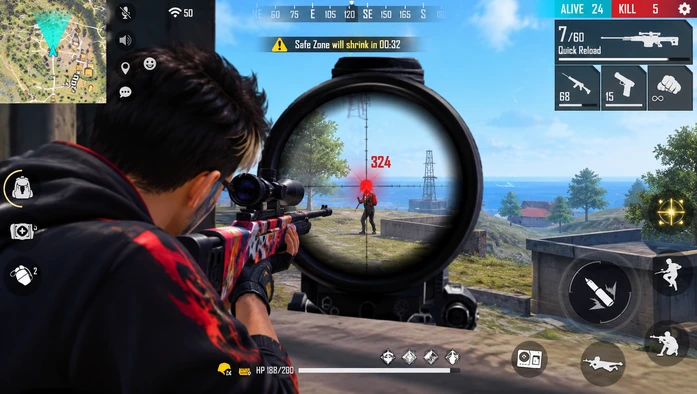
The right Best Free Fire Sensitivity Settings for Headshots can help you control aim and perform smoother drag shots. However, no single setup works perfectly on every phone. Start with the settings below, then make small adjustments based on your gameplay.
Best Sensitivity Settings for Headshots
Try these starting values on a 0–200 sensitivity scale. If your game uses a different scale, adjust the values accordingly.
| Setting | Recommended Value |
|---|---|
| General | 185 |
| Red Dot | 180 |
| 2x Scope | 170 |
| 4x Scope | 155 |
| Sniper Scope | 100 |
| Free Look | 140 |
These values are a starting point, not guaranteed headshot settings. Test them in the training area before using them in ranked matches.
Settings for Low-End Android Phones
Budget phones have smaller screens, limited performance, or inconsistent touch response. You can also try CLT Panel APK to explore additional touch and display settings for your phone. Start with General sensitivity between 175 and 190 and Red Dot between 165 and 185. If your aim feels unstable, reduce the relevant setting by 5–10 points.
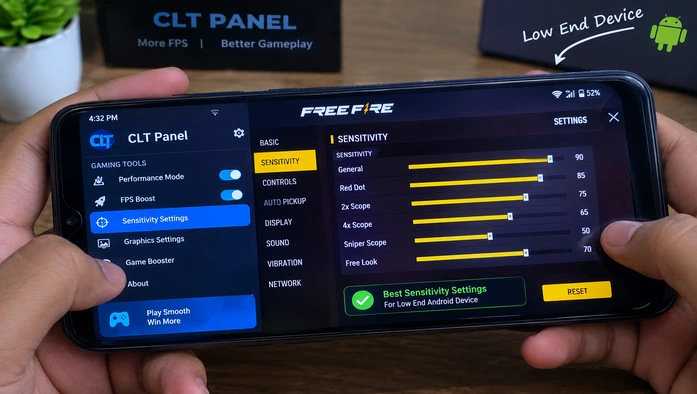
Close unnecessary background apps and lower graphics settings if the game stutters. Sensitivity changes cannot fix every performance problem.
Best Settings for Drag Headshots
Drag headshots require you to move your finger upward while firing. General sensitivity affects overall aiming, while Red Dot sensitivity matters when aiming through the red dot sight. Lower scope sensitivities can help maintain control when using magnified scopes.
Keep General and Red Dot relatively high if you prefer fast upward drags. If your crosshair repeatedly moves above the enemy’s head, reduce sensitivity slightly instead of increasing it further.
How to Adjust Sensitivity for Your Phone
Open the training area and test your aim against stationary targets. If your crosshair stops around the chest, increase General sensitivity by 5 points. If it jumps above the head, decrease it by 5 points.
Change one setting at a time and test several shots before making another adjustment. This helps you identify which setting actually improves your control.
Best Fire Button Size for Headshots
Try a fire button size between 45% and 55% as a starting point. A larger button provide more room for dragging, while a smaller one suit players who prefer precise finger placement.
Place the button where your thumb or index finger can move upward comfortably without interfering with movement controls.
How to Practice Headshots in Training Mode
- Place your crosshair around the enemy’s upper chest.
- Press the fire button and drag your finger upward in a smooth motion.
- Practise at different distances and with different weapons.
- Test your settings in regular matches before using them in ranked games.
Consistent crosshair placement and controlled finger movement are just as important as sensitivity.
Common Sensitivity Mistakes to Avoid
- Copying another player’s settings without testing them.
- Changing multiple settings at once.
- Increasing sensitivity whenever a shot misses.
- Ignoring frame drops or an uncomfortable control layout.
Frequently Asked Questions
Conclusion
Start with the recommended values, practise drag shots, and adjust sensitivity gradually. A comfortable setup that matches your finger movement is more useful than copying settings designed for another device.